The Sharpness Slider Is Not a Detail Finder
Screen sharpness settings can add artificial outlines rather than recover detail. Learn how to spot halos, compare sources, and choose a natural-looking image.
You raise the sharpness setting while a film menu is on screen. The lettering seems firmer, but a pale rim now traces the letters against the dark background. Screen sharpness settings can make boundaries more conspicuous without revealing finer detail in the image.
Screen sharpness settings
The control often adjusts edge enhancement: image processing that increases contrast near transitions between light and dark areas. A stronger transition can make an edge appear more distinct, even though the underlying image has not gained texture or detail.
Names and behavior vary by display. A low position may reduce added enhancement, or it may soften edges; a high position can create visible outlines. The slider’s number is not a universal scale, so judge the picture rather than aiming for a particular reading.
A dark outline around a printed letter makes its boundary stand out, but it does not add detail to the paper or the letter. Edge enhancement creates a similar impression on screen.
Halos and real texture
Look just beside a high-contrast boundary. A pale or dark strip around white subtitles, a window frame, or a silhouette against the sky may be a processing artifact. Diagonal lines can appear jagged, and facial features may look etched when enhancement is strong.
Texture is different from an outline. Hair, fabric weave, leaves, and fine grain consist of variations within an area. Making an edge more forceful cannot recreate those variations if they are absent from the image.
Check for a rim around the boundary, not just for an edge that looks striking.
Source detail limits
A compressed stream, soft recording, or enlarged low-resolution image may lack fine information. Sharpness processing can emphasize what remains, but it can also make noise and compression artifacts more obvious. A vivid outline is not evidence that missing source detail has returned.
Different material reveals different flaws. Clean computer text and animated graphics make halos easy to spot; leaves, hair, and patterned clothing show whether enhancement makes natural texture look brittle or speckled. Compare content you actually watch rather than relying on one demonstration image.
Adjust the control
Choose a familiar paused scene with text, fine texture, and a clear boundary, such as a face near a bright window. Move the slider down, then up in small increments, keeping other picture controls unchanged. Watch the subtitles, hairline, window frame, and clothing for added rims, smeared edges, or texture that breaks into specks.
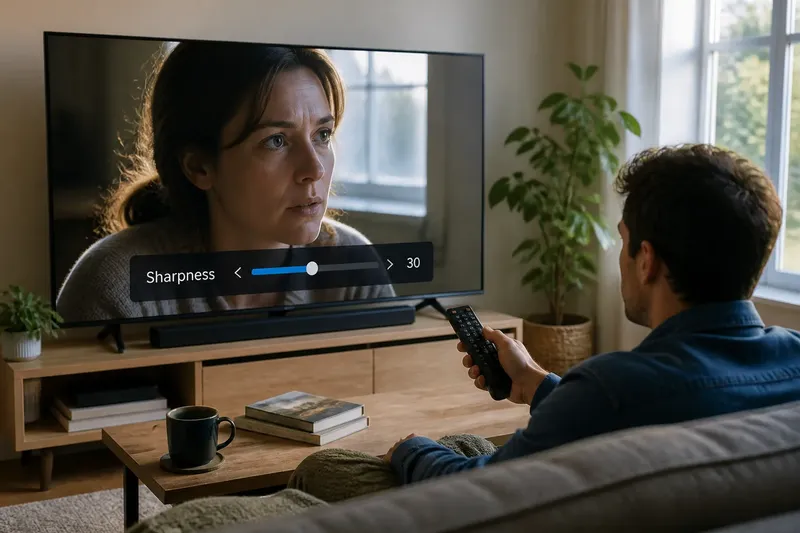
Say you are adjusting a living-room television with a drama paused on a face beside a bright window. At the starting setting, the window frame has a pale border and the hairline looks etched. You lower sharpness one small increment at a time; the border recedes while the visible strands remain much the same. You then raise it slightly and see the rim return, so you keep the lower position as the more natural-looking choice for that scene.
If lowering the control makes boundaries look smeared, raise it gradually until they look clean without acquiring a conspicuous rim. Recheck at your usual viewing distance, since close inspection can make subtle artifacts seem more prominent than they are during ordinary viewing.
Which sharpness setting fits?
Should sharpness be set to zero?
Not necessarily. Zero may reduce enhancement on one display and soften edges on another, so compare the image for halos and smearing instead of relying on the label.
Why does text look outlined?
Edge enhancement can increase contrast along the boundary between text and its background, creating a light or dark fringe. If the fringe changes as you adjust sharpness, the control is contributing to it.
Can sharpness fix a soft video?
It can make existing boundaries more pronounced, but it cannot restore image information that the source lacks. If one program looks soft, compare another source before changing a general picture setting.
Why does sharpness vary by input?
Displays may keep separate picture settings for different inputs or viewing modes, and sources can differ in resolution and processing. Check the active input and mode before expecting one adjustment to affect every device.
Compare everyday content
After adjusting, check a streaming program, a broadcast channel, and a connected computer if you use them. Noise reduction can soften texture, while a vivid picture mode can make edges feel harsher. Change one control at a time so the visible difference has a clear cause.
- Check white text on a dark background; if a pale or dark fringe appears, lower sharpness, or compare a mode with less edge processing.
- Check a diagonal line in a menu; if its edge looks jagged, lower sharpness, or switch to a source with cleaner image output.
- Check hair against skin; if strands merge into a hard outline, lower sharpness, or compare another scene before changing a general setting.
- Check fabric or leaves; if texture turns brittle or speckled, lower sharpness, or reduce other processing one control at a time.
- Check a soft program against a clearer source; if only one program lacks detail, leave the general setting alone, or inspect that source’s playback quality.
- Check the active input and picture mode; if the setting differs across them, adjust each mode separately, or choose the one you use for that content.
Display menus and processing behavior differ, so consult the manufacturer’s description when a control is unclear. For a sensible screen sharpness setting, look for legible text, natural boundaries, and texture without a drawn-on rim; the slider can emphasize an edge, not supply the detail behind it.