Why OLED Pixels Can Switch Off Individually
Why OLED pixels switch off individually: understand pixel-level light control, compare OLED with LCD, and choose a display that preserves the dark-scene detail you value.
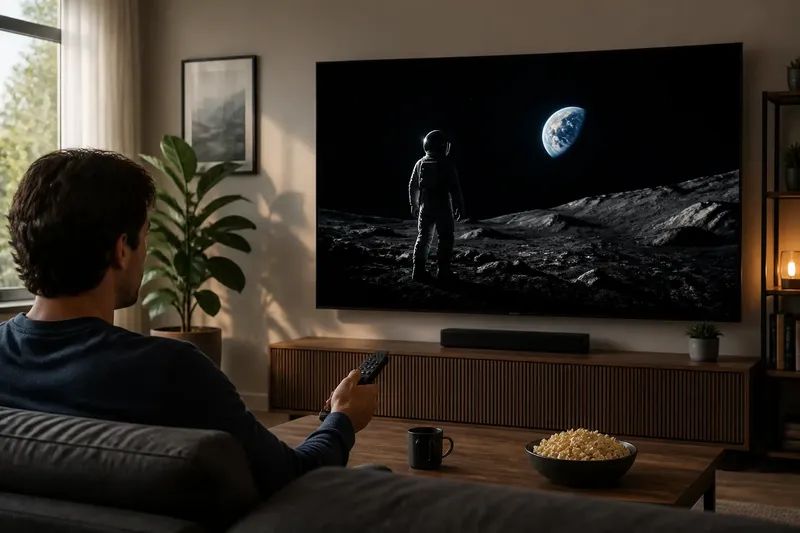
A white subtitle hangs over a film’s black opening frame while the image around it stays dark. Why OLED pixels switch off individually explains this contrast: each pixel produces its own light, so a pixel showing black can stop emitting instead of trying to block a shared backlight.
That distinction is useful when comparing display types, but it does not settle every buying decision. The kind of light control, the visibility of shadow detail, and the material you watch all matter.
Light at each pixel
An OLED display uses organic light-emitting diodes arranged as picture elements. Electrical signals control how brightly each element emits. In a color screen, the display combines red, green, and blue light at the pixel level to produce the image.
When an OLED pixel is told to display black, its light-emitting elements can turn off. A neighboring pixel can remain bright at the same time. Light is controlled at the scale of individual image pixels rather than by illuminating a broad area behind them.
This is what “self-emissive” means: the image elements generate their own light. The display still processes image signals; the distinction is where light is produced and how finely it can be controlled.
In a scene with a bright object against darkness, the object can remain luminous while the surrounding pixels emit little or no light.
OLED and LCD
An LCD forms an image by controlling how much light passes through liquid-crystal pixels. A backlight behind the image supplies that light. Since the backlight serves an area of the screen, an LCD does not ordinarily switch off the light source for a single picture pixel as an OLED can.
Some LCDs use local dimming, dividing the backlight into zones. The display can dim one zone behind a dark region while keeping another brighter. Because each zone covers many image pixels, a small bright object in a dark zone can influence how nearby areas appear.
OLED’s pixel-level control may appeal to viewers who often watch films or play games with dark backgrounds and isolated highlights. LCD with local dimming offers area-based backlight control; conventional LCD uses a backlight without that kind of scene-responsive zoning. These are differences in how light is managed, not a universal ranking of picture quality.
Consider the image detail you care about most: deep blacks, visible shadow texture, or an LCD’s zoned backlight behavior.
Dark-scene questions?
Why does OLED black look different?
A black OLED pixel can stop emitting light instead of covering a continuously lit backlight. Against a dark image, that can make the boundary around a bright object appear especially distinct.
Can LCD show dark scenes well?
Yes. LCD picture quality depends on its panel and backlight design, and local dimming can reduce light behind darker regions. Its zones cover groups of pixels, so the effect differs from OLED’s pixel-by-pixel emission.
Does a dark picture setting switch pixels off?
A picture setting changes brightness and tone; it does not make an LCD self-emissive. On OLED, pixels assigned black can cease emitting while neighboring pixels continue to produce the image.
Does every black-looking pixel stay off?
Not necessarily. A near-black part of a scene may contain subtle detail, and the display must render that information rather than treat it as pure black.
Near-black detail
Deep black is only part of a dark scene. A shadow may contain the outline of a coat, texture on a wall, or a face turned away from a lamp. If near-black tones are rendered too dark, those details can become difficult to distinguish.
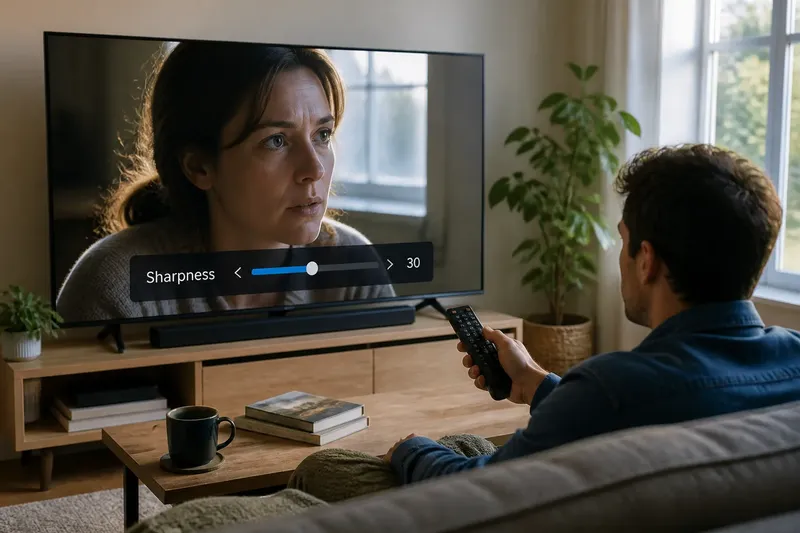
Picture modes, brightness controls, and the source image all affect the result. A black-level control can alter how dark shades appear; an unsuitable adjustment may merge shadow detail into black or make black areas look gray. Start with an intended picture mode and make small changes while viewing familiar material.
Say you are watching a film and a character’s dark jacket blends into the background, though the bright subtitles are clear. You switch from a vivid preset to a cinema-oriented mode and replay the same scene. If the jacket’s texture becomes easier to see without making the entire image look washed out, that mode better preserves the detail you wanted; if the change lifts all dark areas without revealing texture, return to the previous mode.
For this comparison, use the scene itself as your reference rather than judging a black screen. Keep the source and picture controls fixed while you assess whether the intended shadow detail is visible.
Choosing by viewing habits
Match the display’s light-control approach to the material you watch and the details you notice. These questions can narrow the choice:
- Dark films or games: Check whether black backgrounds and isolated highlights are frequent in your viewing. If they are, compare OLED’s pixel-level control with LCD local dimming; otherwise, weigh other features you value more.
- Shadow texture: Check whether faint detail, such as fabric or a dimly lit face, remains visible in familiar scenes. If it disappears, try an appropriate picture mode or modest control adjustment; if the image becomes washed out, restore the earlier setting.
- Local dimming: Check whether the LCD you are considering has backlight zones that respond to scene content. If it does, decide whether area-based control suits you; if it does not, compare its ordinary backlight behavior with the alternatives.
- Bright interfaces and documents: Check which display behavior makes everyday text and interface elements comfortable to view. If deep black is not a priority, include conventional LCD in the comparison; if dark-scene contrast matters, compare OLED and local-dimming LCD as well.
- Near-black image material: Check whether your usual films or games contain subtle detail in shadows. If that detail matters, choose the display and picture mode that keep it discernible; if your content rarely uses such scenes, give it less weight.
- Picture adjustments: Check whether a change reveals texture or merely raises the brightness of every dark area. If texture becomes clearer without a washed-out look, keep the adjustment; if not, revert and try a different mode or control.
Imagine you are choosing a screen mainly for a bright home office, with occasional films after work. You list readable everyday interfaces and preserved shadow texture as your priorities, then compare familiar content on an LCD and an OLED. If the LCD suits the work material but the OLED makes dark scenes easier for you to read without hiding the details you value, the tradeoff is clear; if both render those details satisfactorily, prioritize the everyday viewing behavior you prefer.
Why OLED pixels switch off individually is the central distinction: the display can control light at each image pixel, rather than only across a shared backlight area. When comparing screens, use a familiar dark scene to check both the blacks and the information within the shadows.